Check ePayslip Online: Download & Print GoG Payslip (2026)
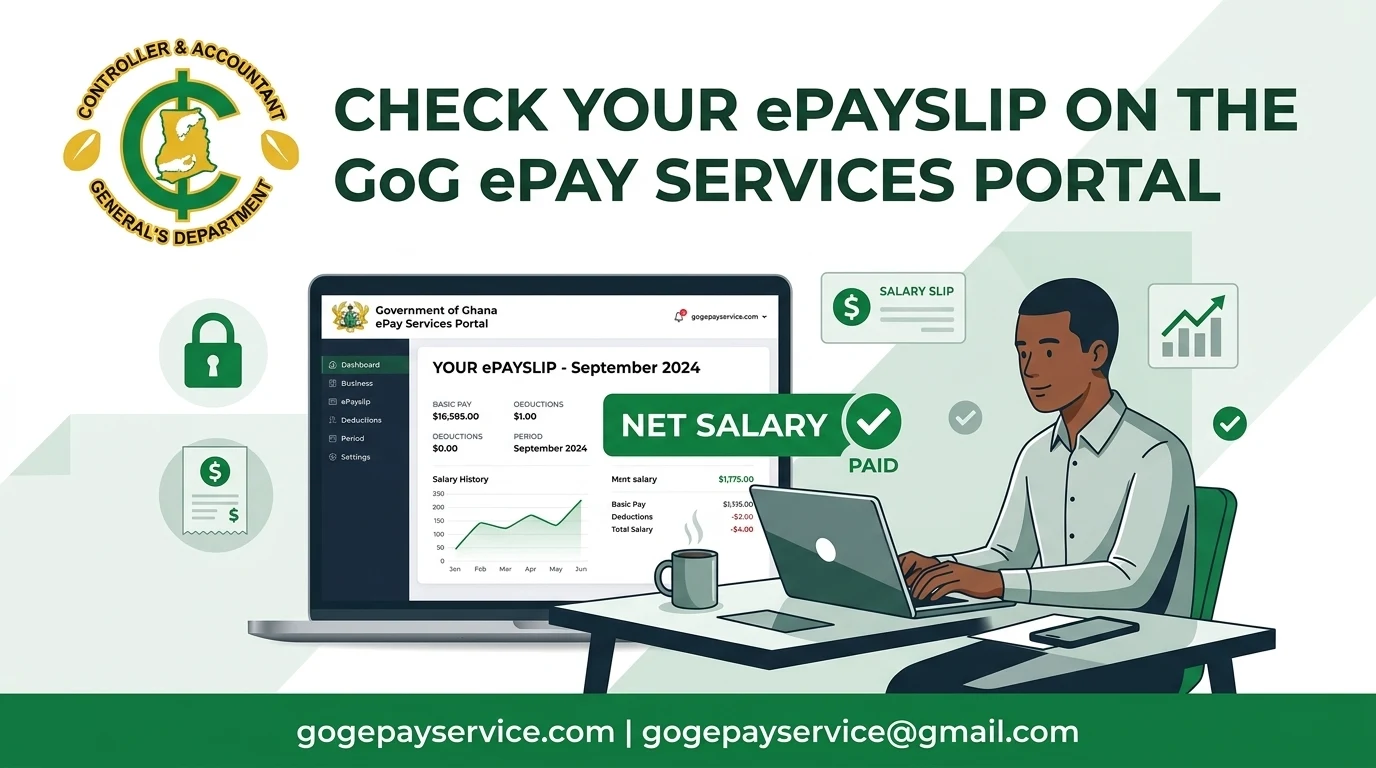
Want to check your GoG ePay Services payslip online? Many government employees in Ghana struggle to see their monthly ePayslip. Waiting for a printed copy or chasing the HR office is slow and stressful, especially when you need your salary information urgently.
The GoG ePay Services portal solves this: a secure online system where you can view, download and print your ePayslip anytime, on a phone or computer. This guide takes you through it step by step, from what you need before you start to checking your payslip in minutes.
Check ePayslip in 6 Quick Steps
What Is the GoG ePay Services Portal?
GoG ePay Services is the new payslip portal for government employees in Ghana, managed by the Controller and Accountant-General’s Department (CAGD). It replaced the old GoGPayslip system.
Why it is important:
What You Need Before Checking Your ePayslip
Before you login the Portal, it is important to make sure you have all the required information and a working device ready.
How to Check Your ePayslip: Step-by-Step Guide
Follow these simple steps to log in, generate, and download your Payslip from the Gogepayservices Portal.
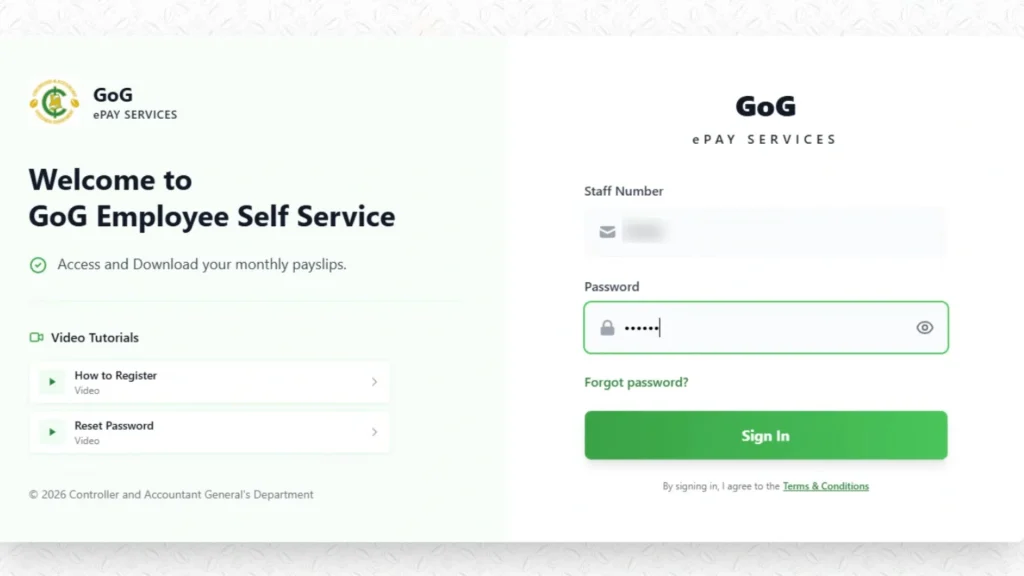
Step 1: Login to Your Account
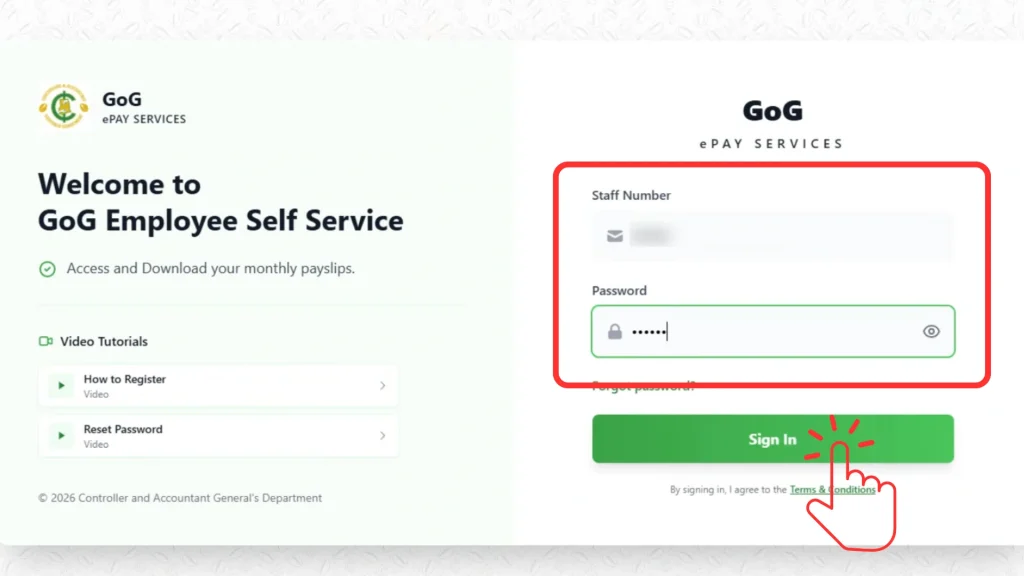
Open your browser and visit the official GoG ePay Services portal. Enter your Staff ID and Password, then click the Sign In button to access your account. Make sure your login details are correct to avoid errors.
Step 2: Access Your Dashboard
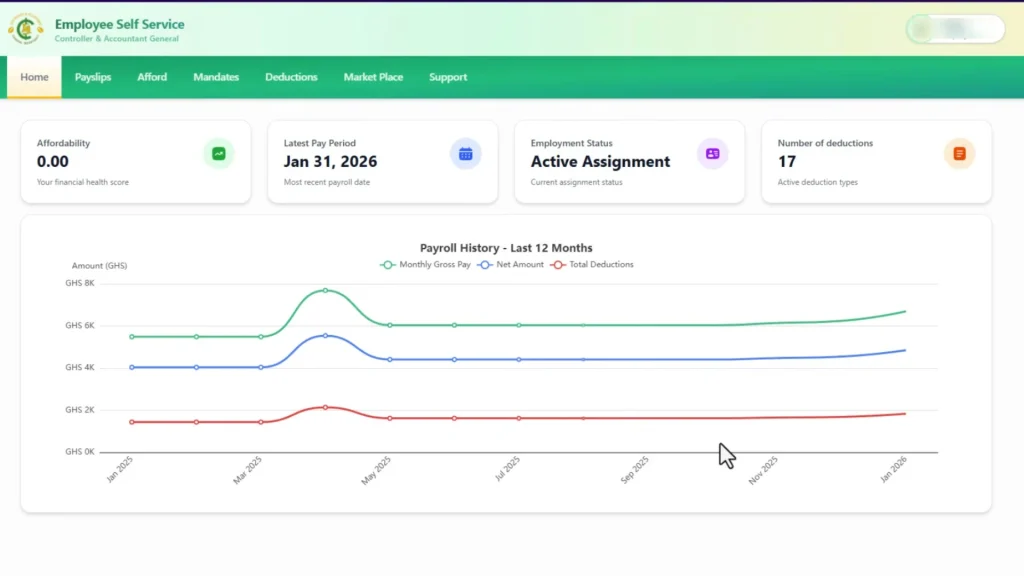
After login, the system will redirect you to your dashboard. This is your main control page where all payroll options are available.
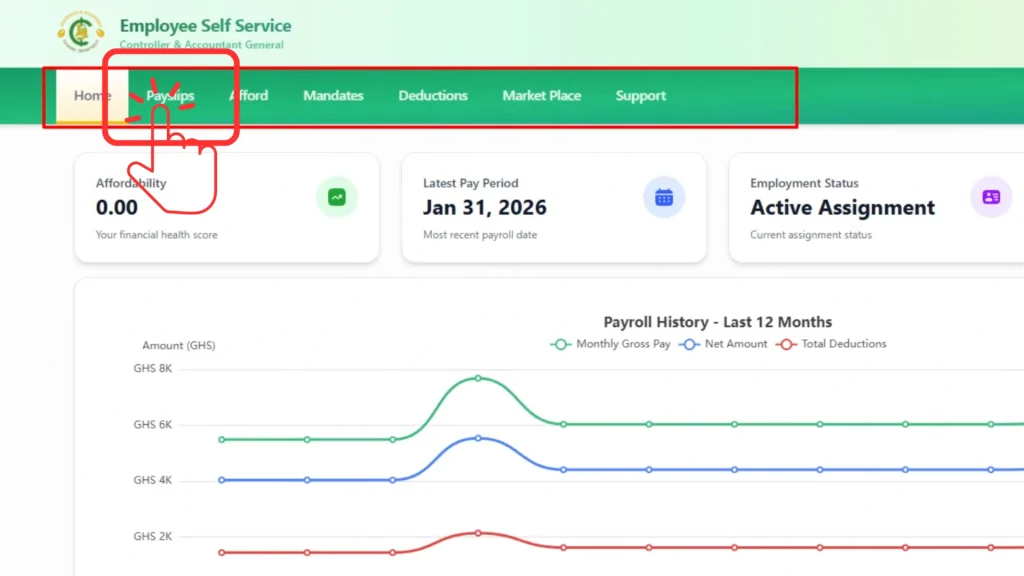
Step 3: Open the Payslips Section
From the dashboard, click on the Payslips option to open your salary records area.
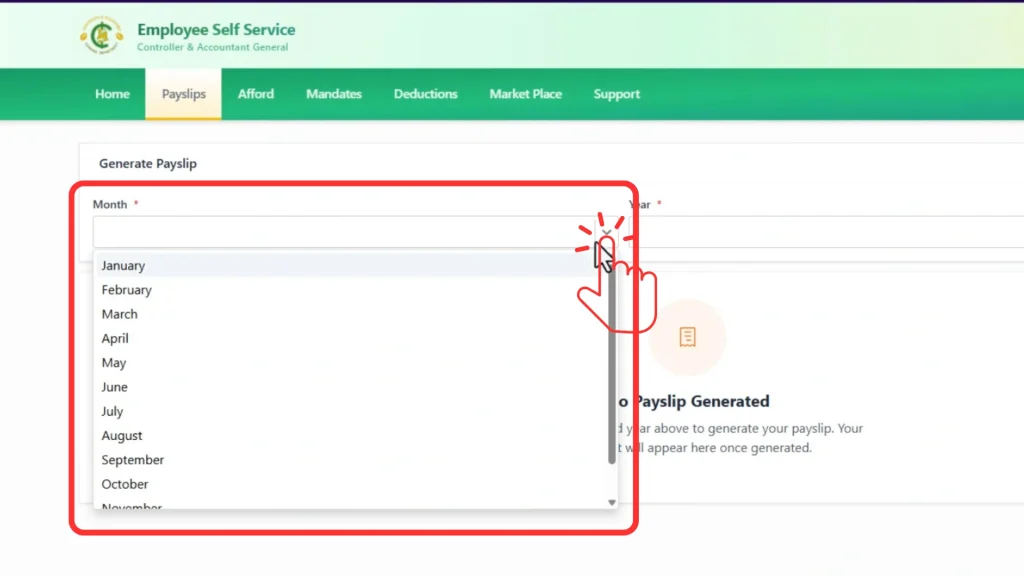
Step 4: Select the Month
Choose the month for which you want to view your salary, such as January, February, or any other available month.
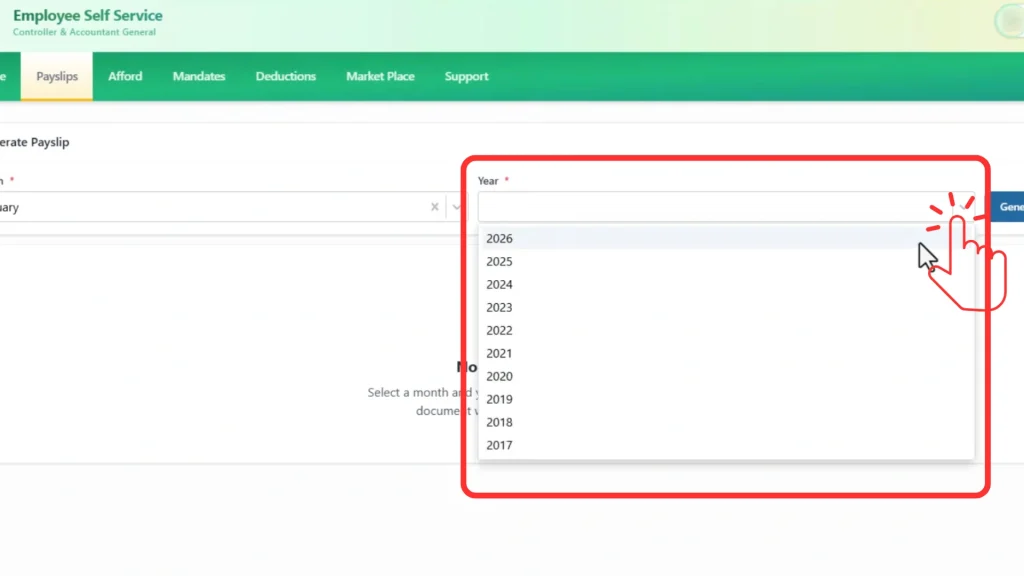
Step 5: Select the Year
Now select the year, for example 2026, to filter your payslip records correctly.
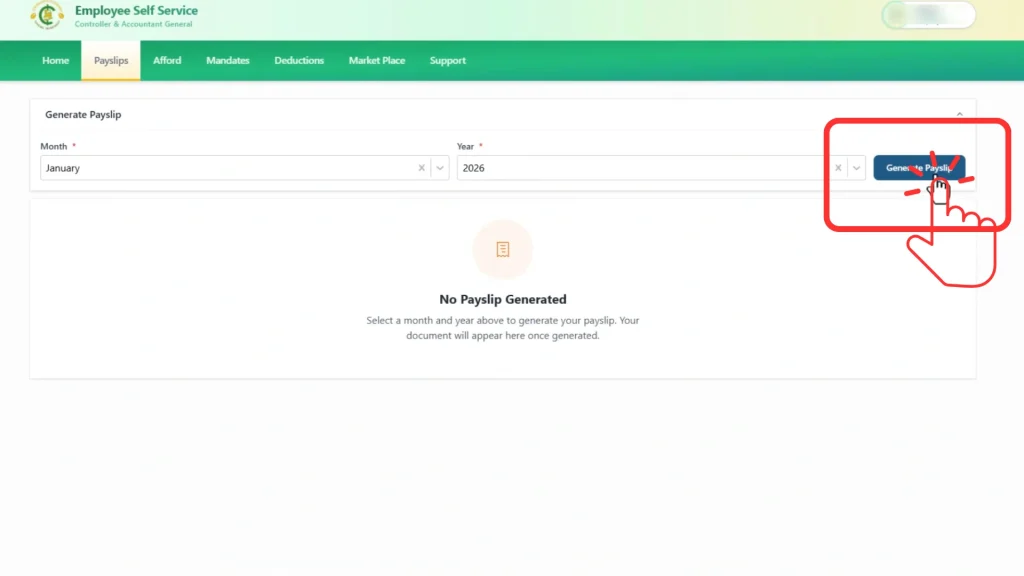
Step 6: Generate Your Payslip
Click the Generate button after selecting the month and year. Your ePayslip for that period will then appear on the screen.
Step 7: Review Your Payslip Details
Carefully check all salary information shown on the screen. This includes your name, basic salary, allowances, deductions, and your final net salary.

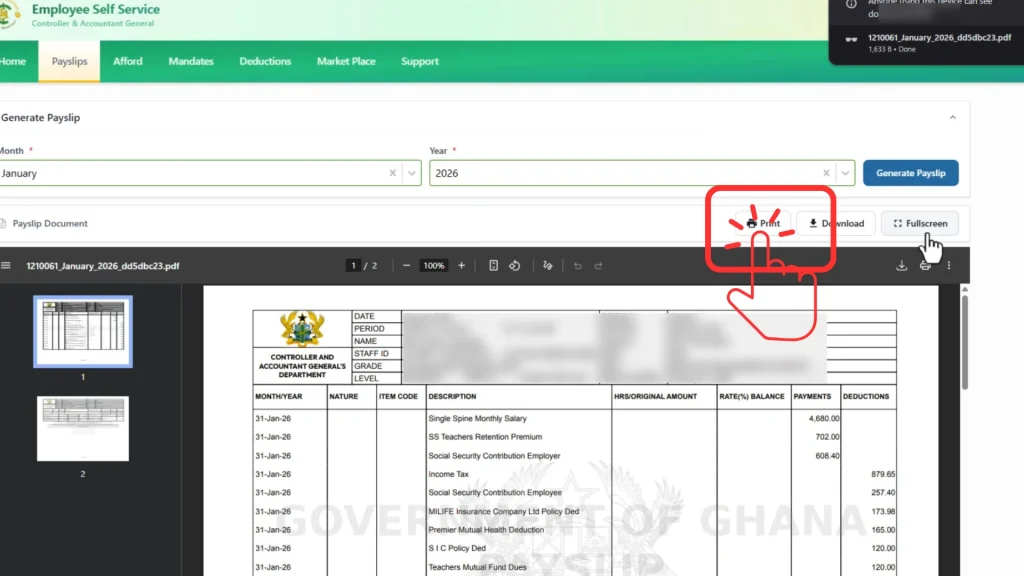
Step 8: Print Your Payslip
If you need a physical copy, click on the Print option. Your payslip will be prepared for printing instantly.
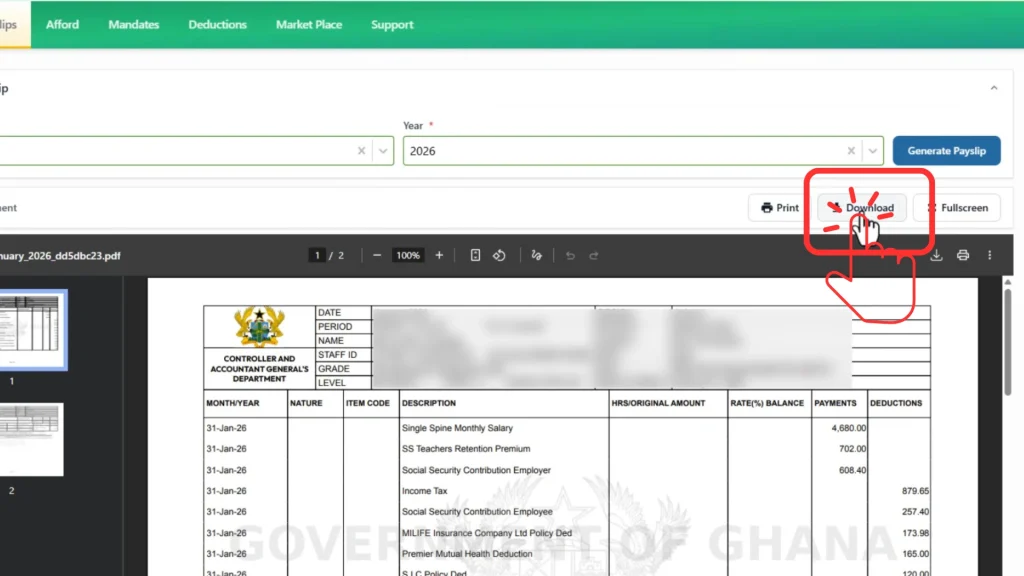
Step 9: Download Your Salary Slip (PDF)
To save a digital copy, click the Download PDF button. The payslip file will be saved on your device for future use.
Step 10: Logout Securely
Once you are done, click on the Logout button to safely exit your account. This helps protect your personal payroll information, especially on shared devices.
Watch the official video tutorial for a step-by-step guide on how to check your ePayslip through the Employee Self Service portal.
Source: Official CAGD YouTube Channel.
Understand Your GoG ePayslip
Your GoG ePayslip contains a complete breakdown of your salary details, including earnings, deductions, and official payroll information. It helps you clearly understand how your final salary is calculated each month.
Personal Information
The top section shows your basic employment identity as recorded in the CAGD payroll system.
Earnings (Income Details)
This section shows all the money you earn before deductions are applied.
Deductions
This section shows all amounts deducted from your salary as required by law or employment policies.
Net Salary
This is your final salary after all deductions have been applied. It is the exact amount credited to your account.
Key Features of the GoG ePay Services Portal
After GoG ePay Services registration, the Portal offers several useful features that make payroll management easier, faster, and more secure for government employees.
Security Features
The portal uses multiple security measures to protect employee information and prevent unauthorized access.
Access Features
Employees can access the portal anytime from different devices with an internet connection.
Download Features
The system allows users to save and manage their salary records conveniently.
Common ePayslip Errors & Fixes
You may sometimes face problems while checking your ePayslip on the Gogepayservices Portal. The table below shows common issues and their solutions.
Problem | Cause | Solution |
Login failed | Wrong details | Recheck Staff ID and password |
OTP not received | Network issue | Wait and resend OTP |
Payslip not loading | Slow internet | Refresh or change browser |
PDF not downloading | Browser issue | Enable downloads or switch device |
Account locked | Multiple wrong attempts | Wait 20–30 minutes |
Incorrect salary data | HR issue | Contact HR department |
Helpful Tips for Checking Your ePayslip
These simple tips can help you access your Payslip quickly and avoid common issues while using the Gogepayservices Portal.
ePayslip Help Centre: Support Contacts
If you are unable to view, download, or print your salary slip, you can contact the official GoG ePay Services support team for assistance. They can help with payslip access problems, login issues, reset passwords, missing salary records, and other Payslip related concerns.
HelpDesk Contact Numbers
Contact the support team using any of the following numbers:
Other Places to Get Help
You can also get help from the following offices
Old GoGPayslip vs New ePayslip Portal
The old GoGPayslip portal has been replaced by the GoG ePay Services portal. If you used to check your payslip on the old system, your payslips are now on the new ePayslip portal; there is no separate old portal to log in to.
The new portal keeps the same payslip records (earnings, deductions and net salary) and adds stronger account protection, with Ghana Card verification when you register and OTP checks when needed. If you have not registered on the new portal yet, create your account first, then follow the steps above to check your ePayslip.
Download ePayslip as PDF
After generating your payslip, use the Download PDF button to save a copy on your phone or computer. A saved PDF is useful when a bank, landlord or embassy asks for proof of salary, because you can print or share it without logging in again.
Keep your payslip PDFs in one safe folder, named by month and year. Payslips contain personal salary information, so store them on a device only you use.
Conclusion
Checking your ePayslip through the GoG ePay Services Portal is a simple and convenient way to access your monthly salary information. By following the steps in this guide, you can quickly log in, generate your payslip, review your salary details, and download or print a copy whenever needed.
The Gogepayservices portal helps government employees manage their payroll records more efficiently without visiting HR offices or waiting for printed payslips. If you encounter any issues while checking your Payslip, you can use the troubleshooting tips and support contacts provided in this guide to resolve them quickly.